Listing Products and Creating Trade Tracking Flows on Trace
Who is this document for?
This document is for sellers on the Trace platform who want to list products for sale and create a Trade Tracking Flow to manage their transactions effectively. Whether you are selling agricultural products or solid minerals, this guide will walk you through how to list your products, set your trade terms, and track your trade from start to finish.
Before You Start Trading
Before you can sell products on Trace, you must first create a listing.
✅ A listing is a trade setup that defines all the terms and conditions of the sale.
📌 Only verified sellers can create product listings. If you haven’t completed your seller verification, please refer to the Onboarding Guide for Sellers before proceeding.
How to List Products on Trace
Once your business is authenticated by Compliance, follow these steps to list a product:
- Go to the Listing Tab in your seller dashboard.
- Click "List a Product" to begin.
- Choose who you want to trade with:
- Trade with Sabi (Trace Admin)
- Trade with another buyer
📌 Sellers trading with Sabi (Admin) follow a structured process, while trading with individual buyers allows for more flexible negotiations.
Step 1: Add Products to Your Inventory
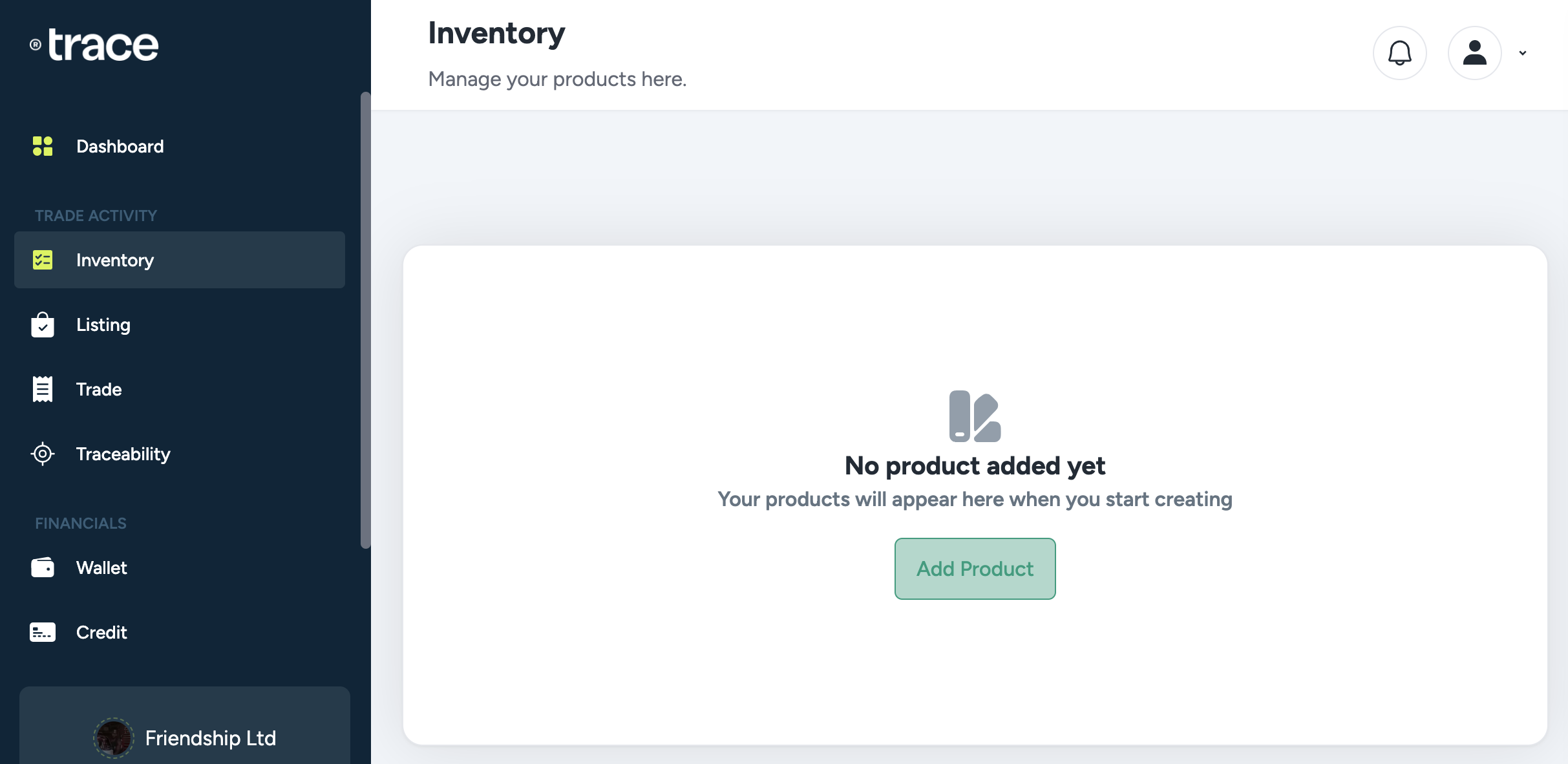
Before listing a product for sale, you must add it to your inventory.
-
Click "Add Product".
-
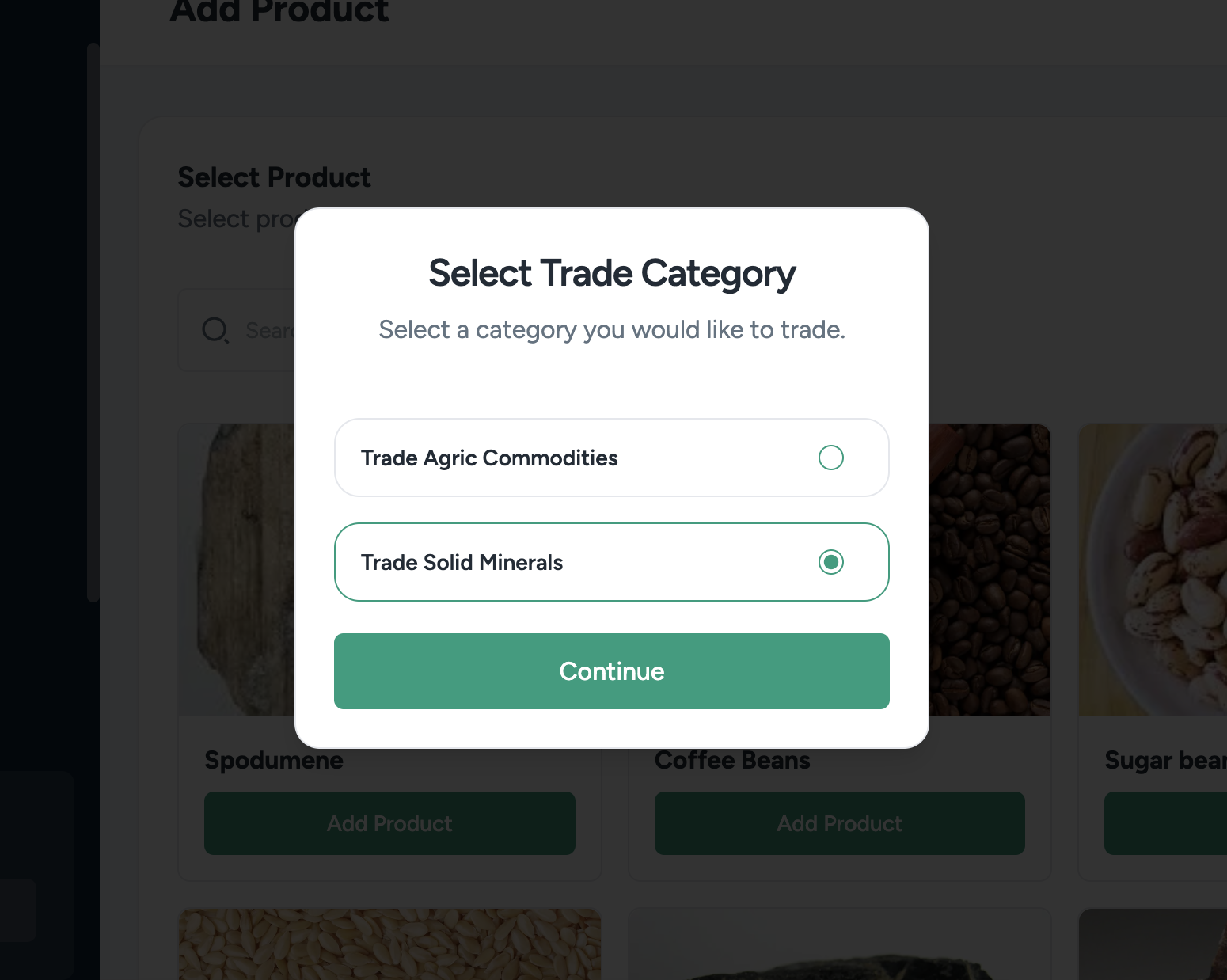
Select the product category:
- Agricultural Products
- Solid Minerals
-
Trace displays a list of products.
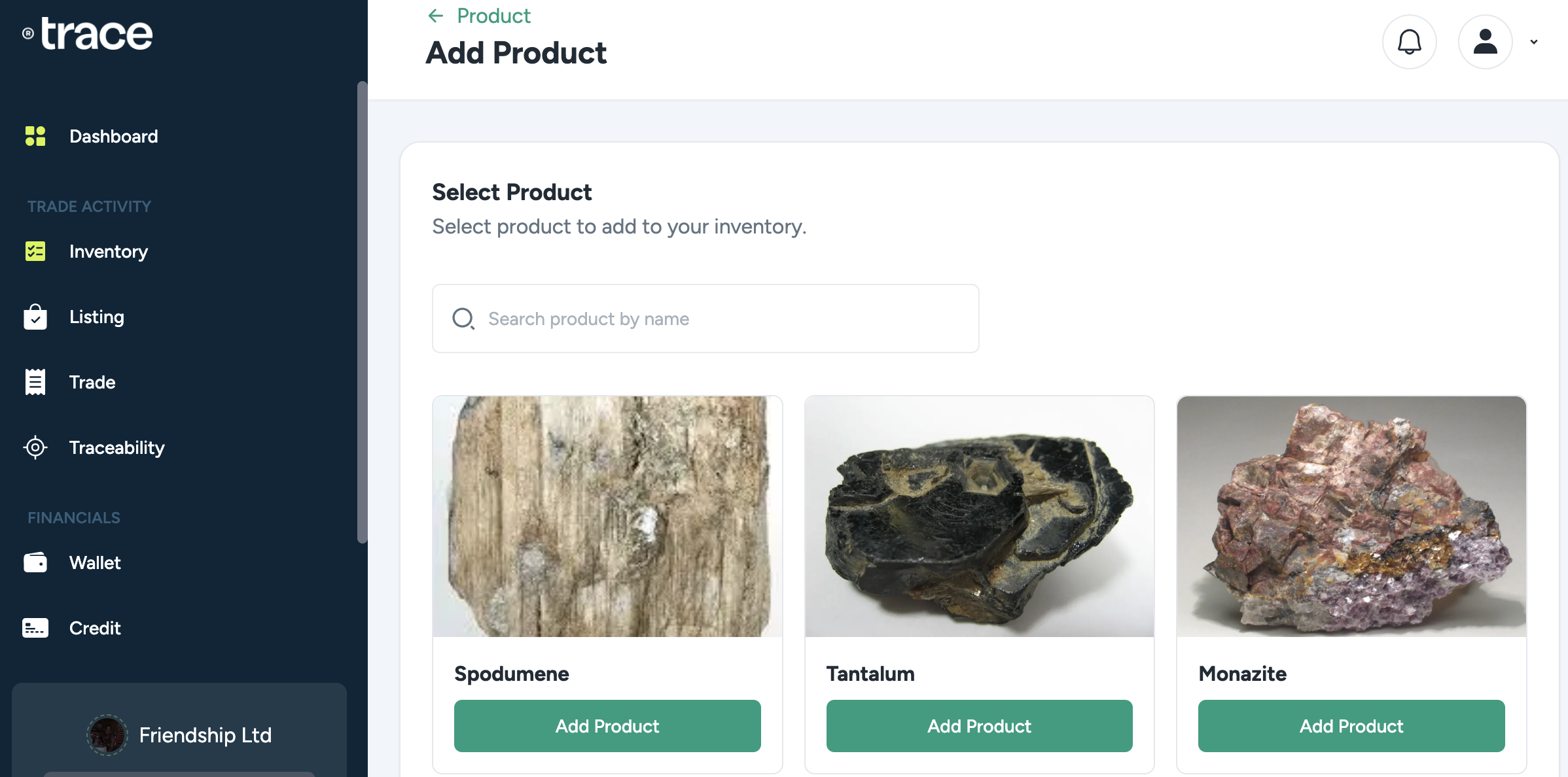
- Choose the specific product and confirm its specifications.
- Click "Add Product" under the selected item.
📌 Each product requires specific details to be added before it becomes available for trade.
Step 2: Provide Product Details
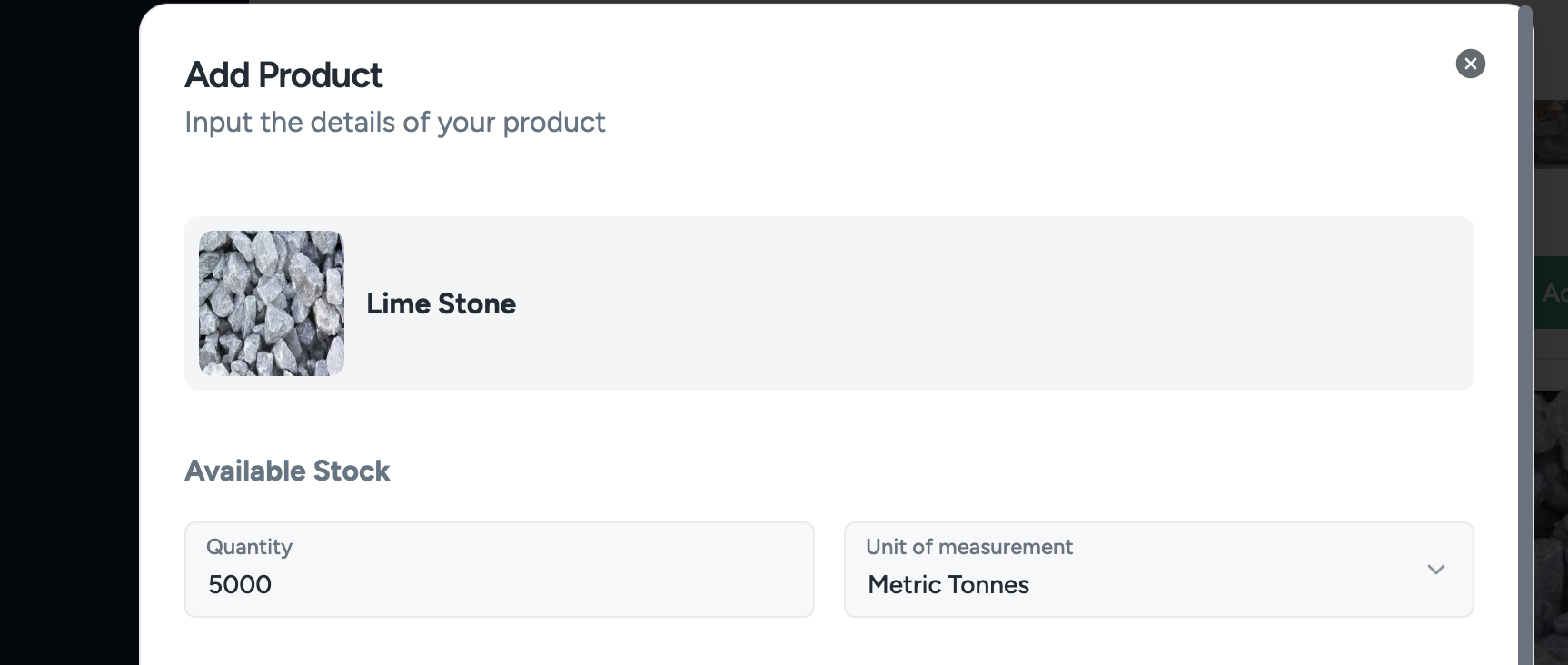
Once you add a product to your inventory, you need to provide key details:
- Available Stock – Enter the quantity and unit of measurement (e.g., 200 Metric Tonnes).
-
Average Capacity – Indicate how often your warehouse is replenished (e.g., 10 Metric Tonnes per week).
-
Pick-up Location – Choose the location type:
- Warehouse (Stored and ready for shipment)
- Minegate (Directly from the extraction site)
-
Logistics Preference – Select how the product will be delivered:
- Pickup (Buyer collects)
- Self Delivery (Seller arranges transport)
- Third-Party Logistics (Independent shipping service)
-
Location Details – Specify:
- State & Local Government Area (LGA)
- Exact address for pickup
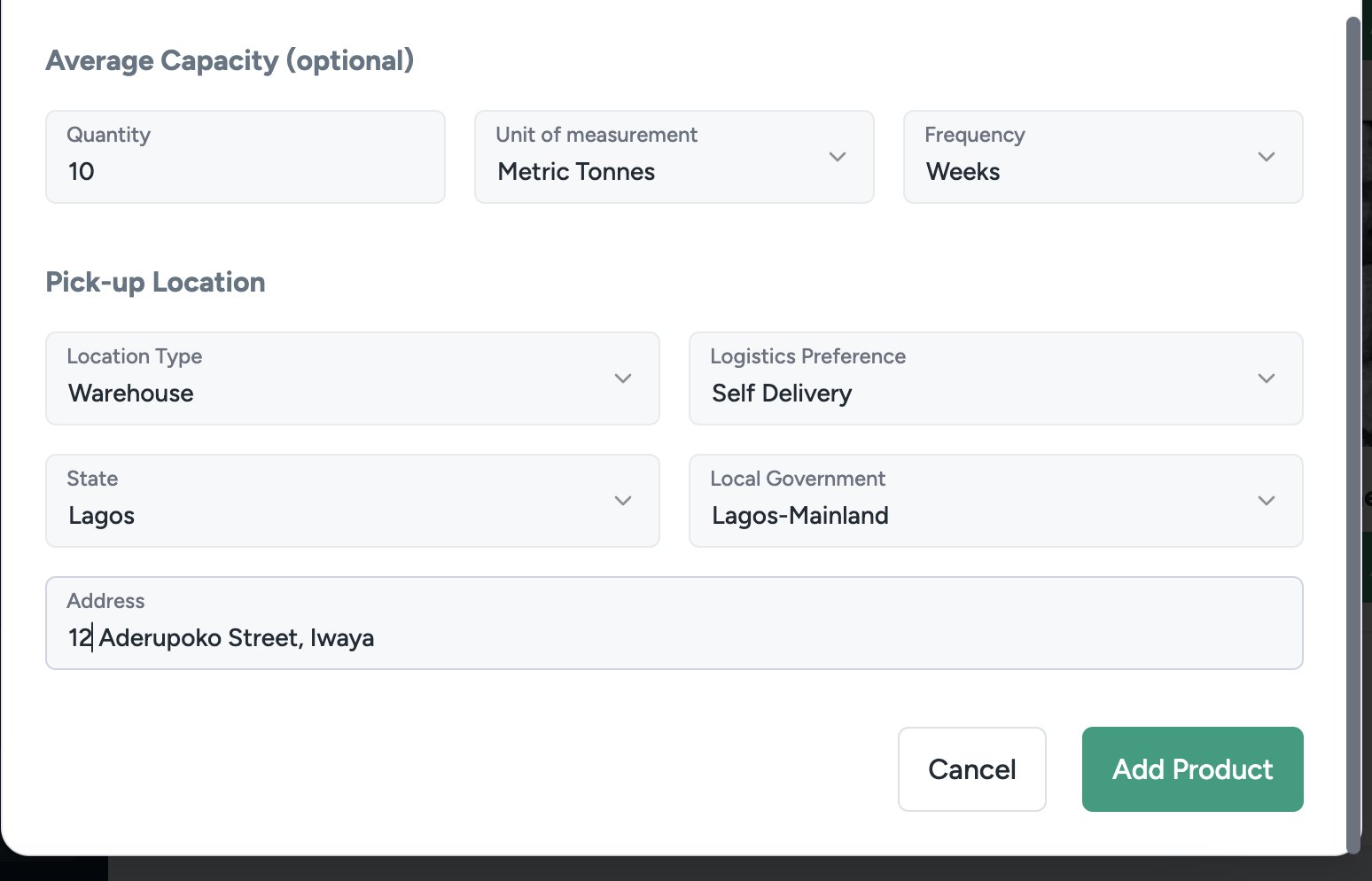
📌 Once you fill in these details, your product is officially added to your inventory!
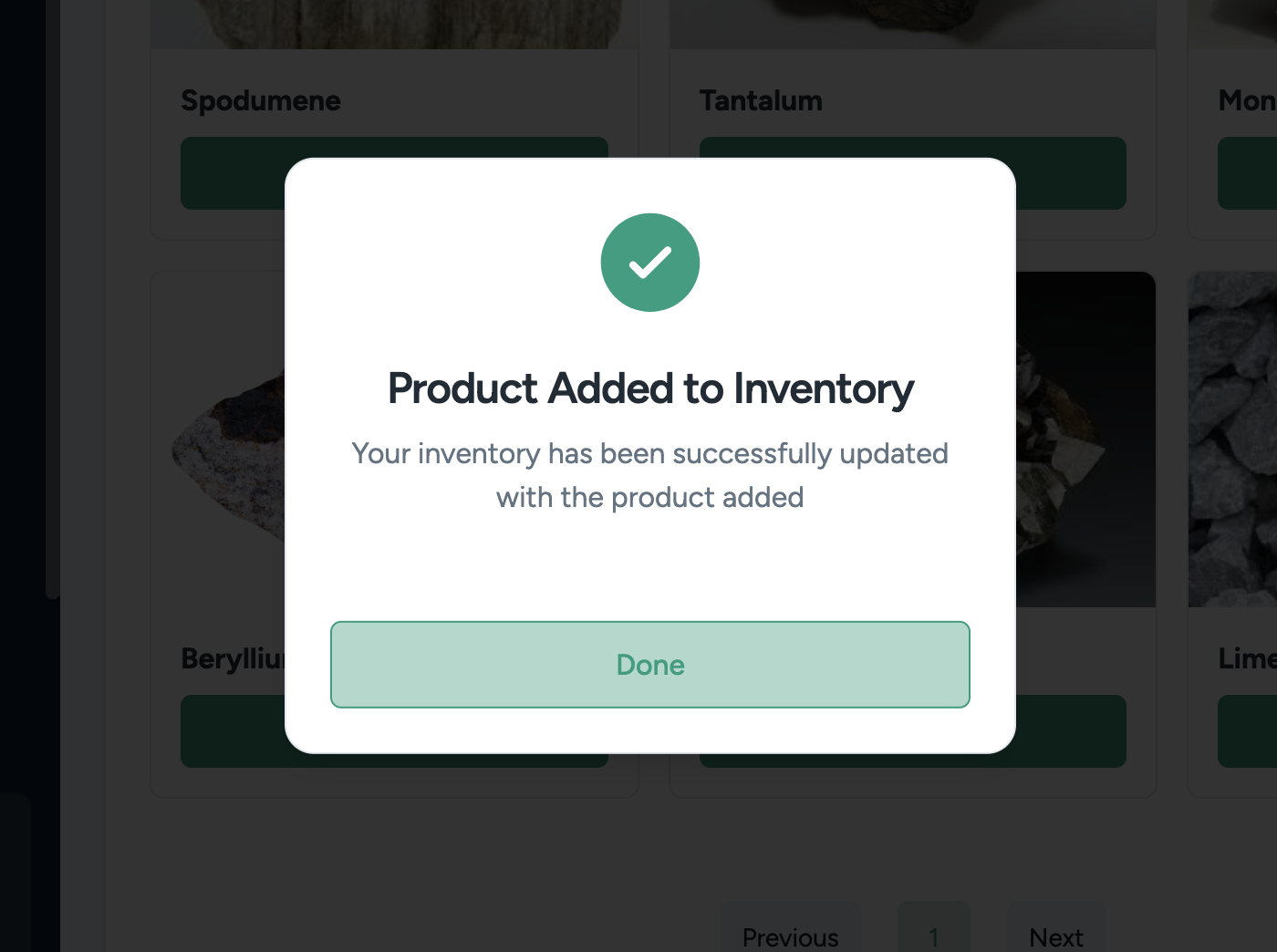
Step 3: Listing Your Product for Trade
You can list a product in two ways:
- From the Inventory Page – Select the product and click “List Product”.
- From the Listing Page – Click “List product” and choose a product from your inventory.
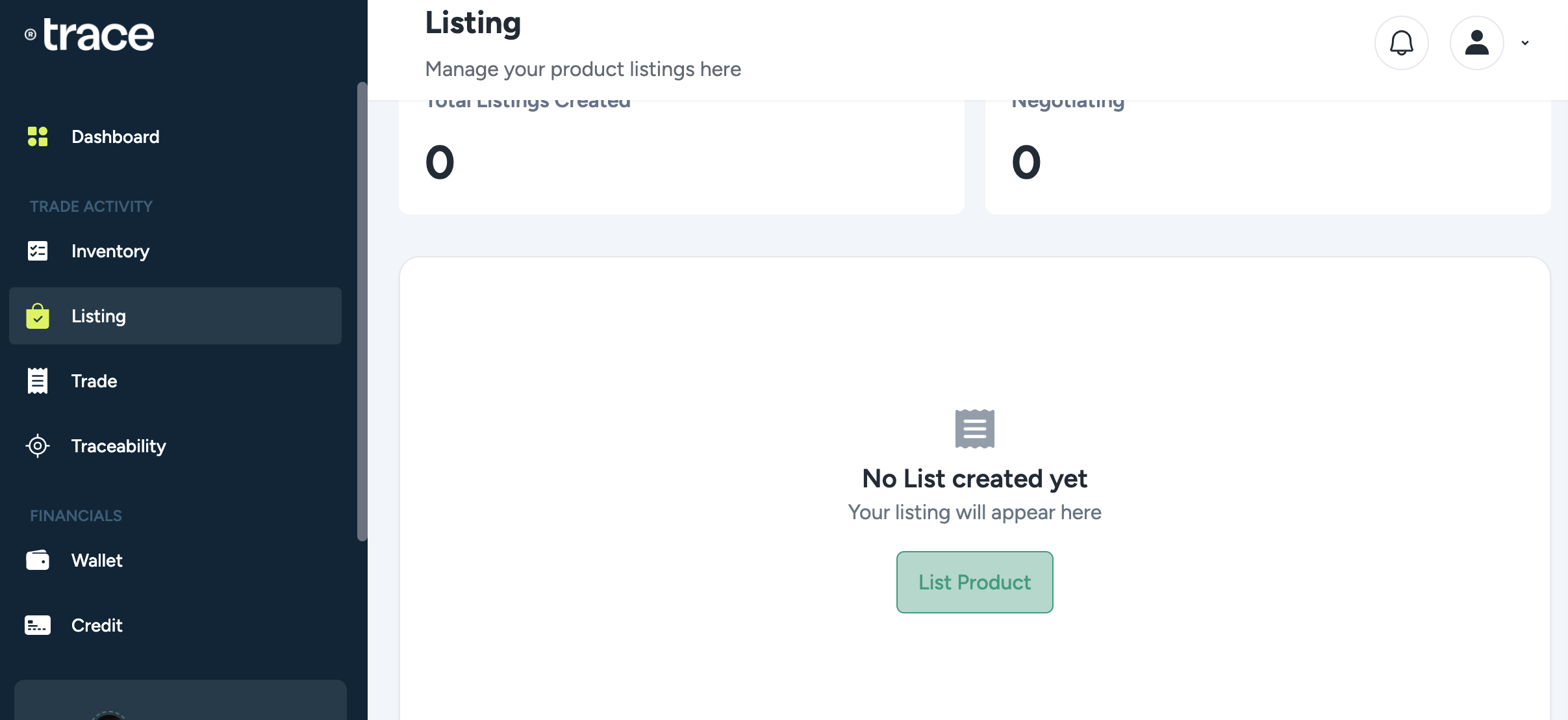
📌 Listing a product means defining the terms of the trade.
Choose Your Trading Partner
After clicking "List Product", the system will ask you to select who you want to trade with:
- Trade with Sabi (Trace Admin) – Selling directly to Sabi follows a structured process and terms set by the platform.
- Trade with Another Buyer – Allows for flexible negotiations between you and an independent buyer.
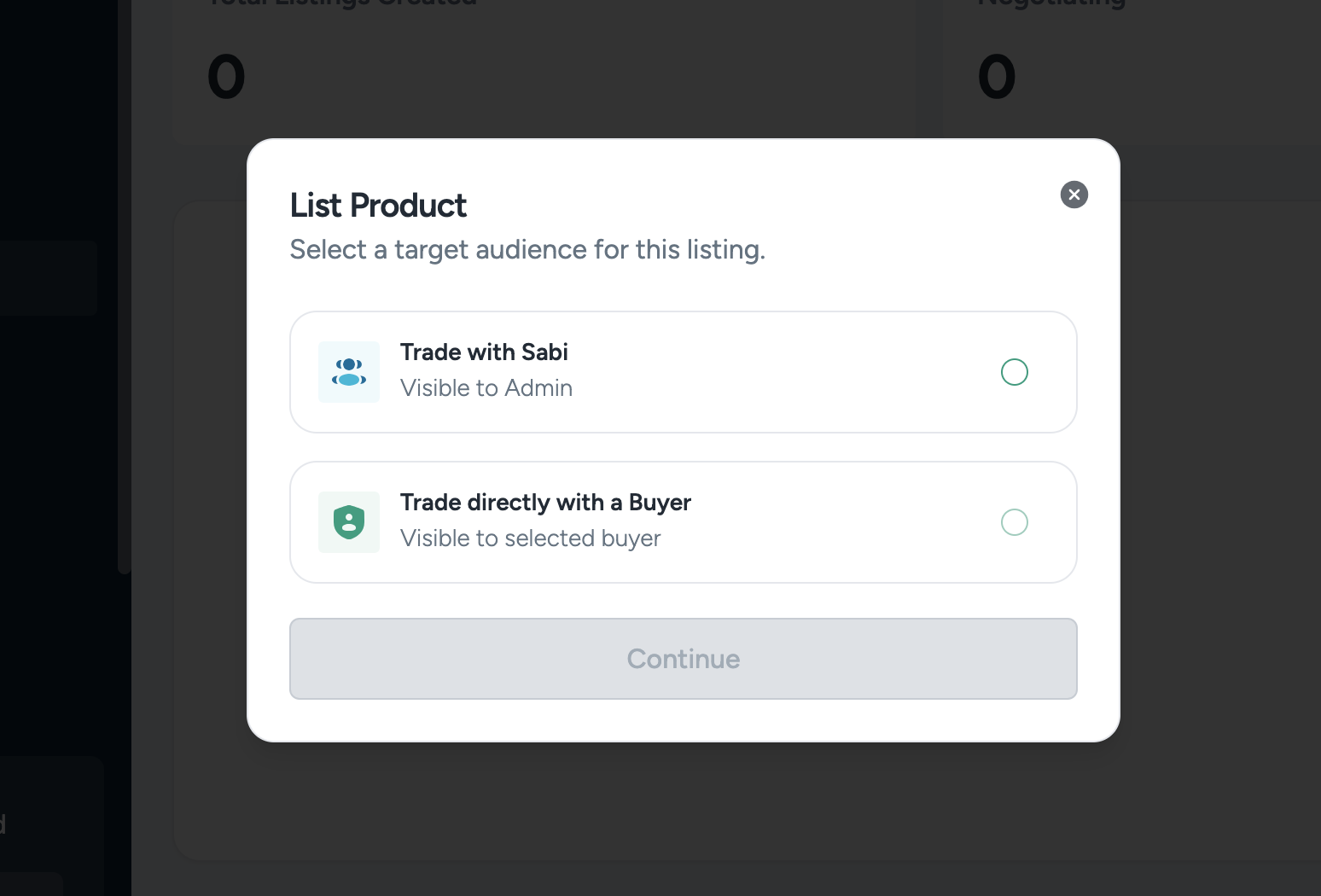
📌 Your choice will affect how the trade is conducted, including pricing, contract terms, and payment structure.
Provide Product Details**
After selecting your trading partner, you must first choose the product(s) you want to list from your inventory.
- The system will display a list of all products you have added to your inventory.
- Select the specific product(s) you want to list for trade.
- Click "Next" to proceed.
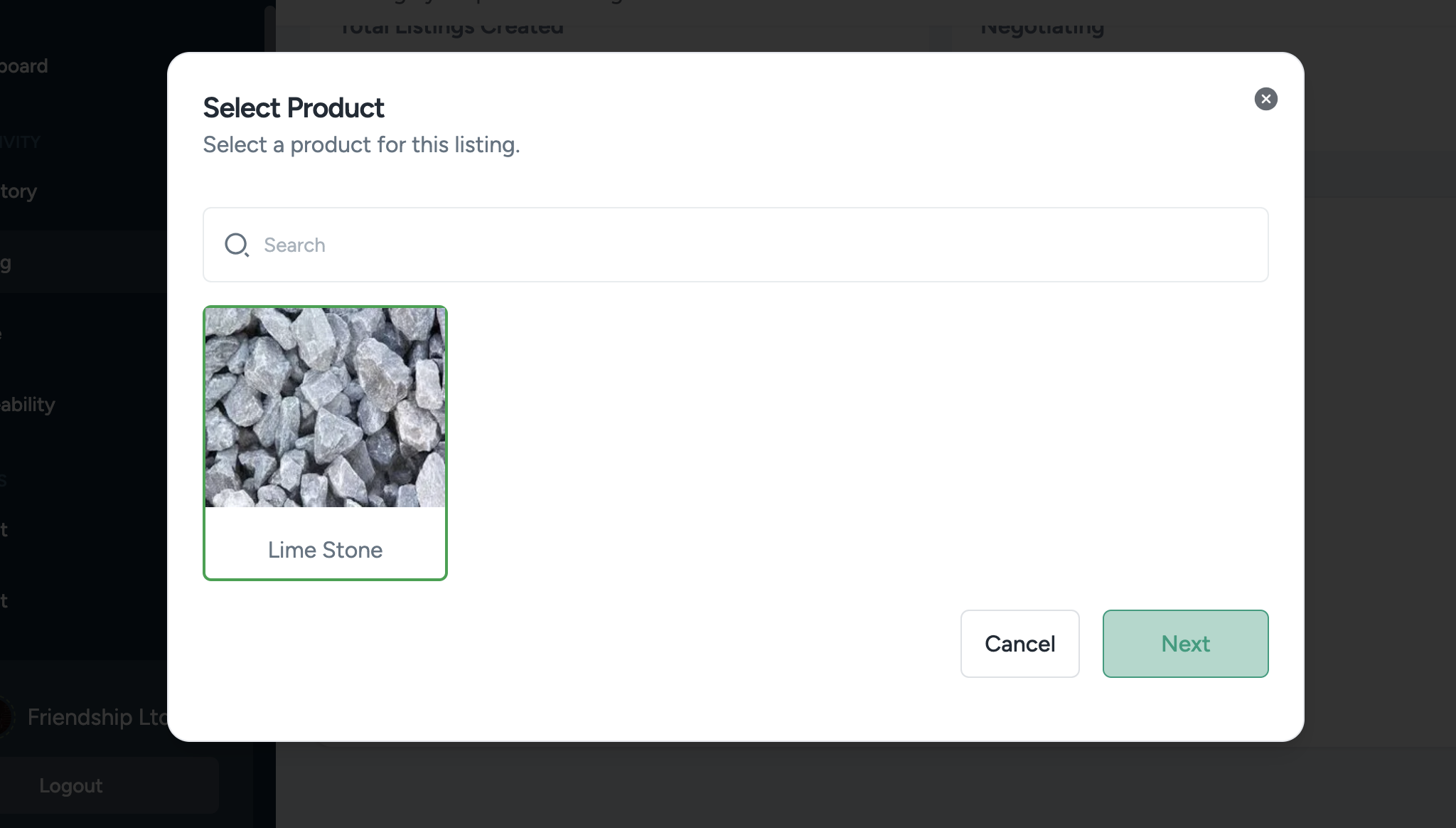
📌 You can only list products that have already been added to your inventory. If a product is missing, return to the inventory section to add it first.
The next step is to provide key details about the product:
Key Details Required for Listing:
-
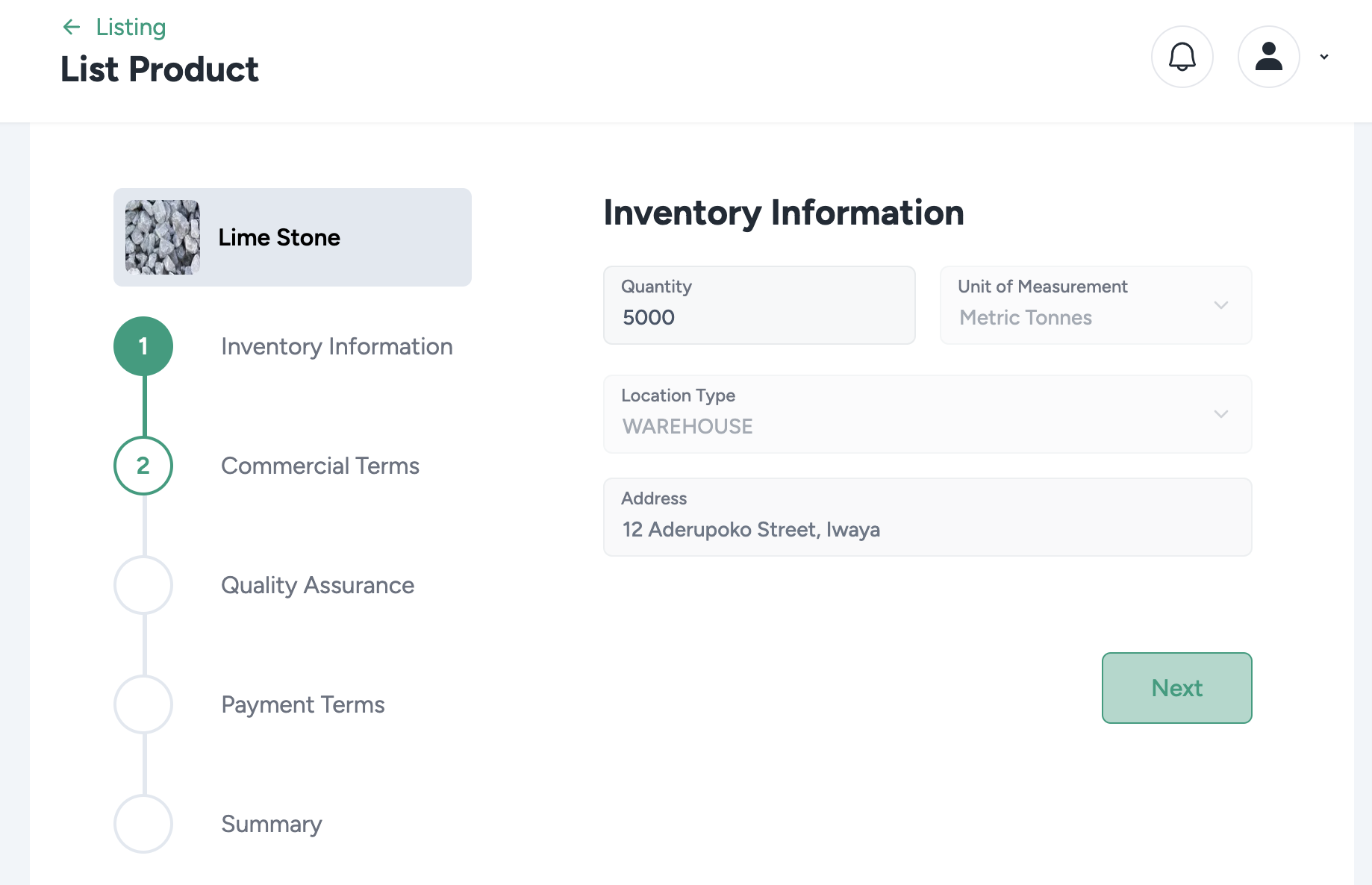
Inventory Information
- The system automatically fills in details from your inventory.
- Confirm the quantity and location type.
-
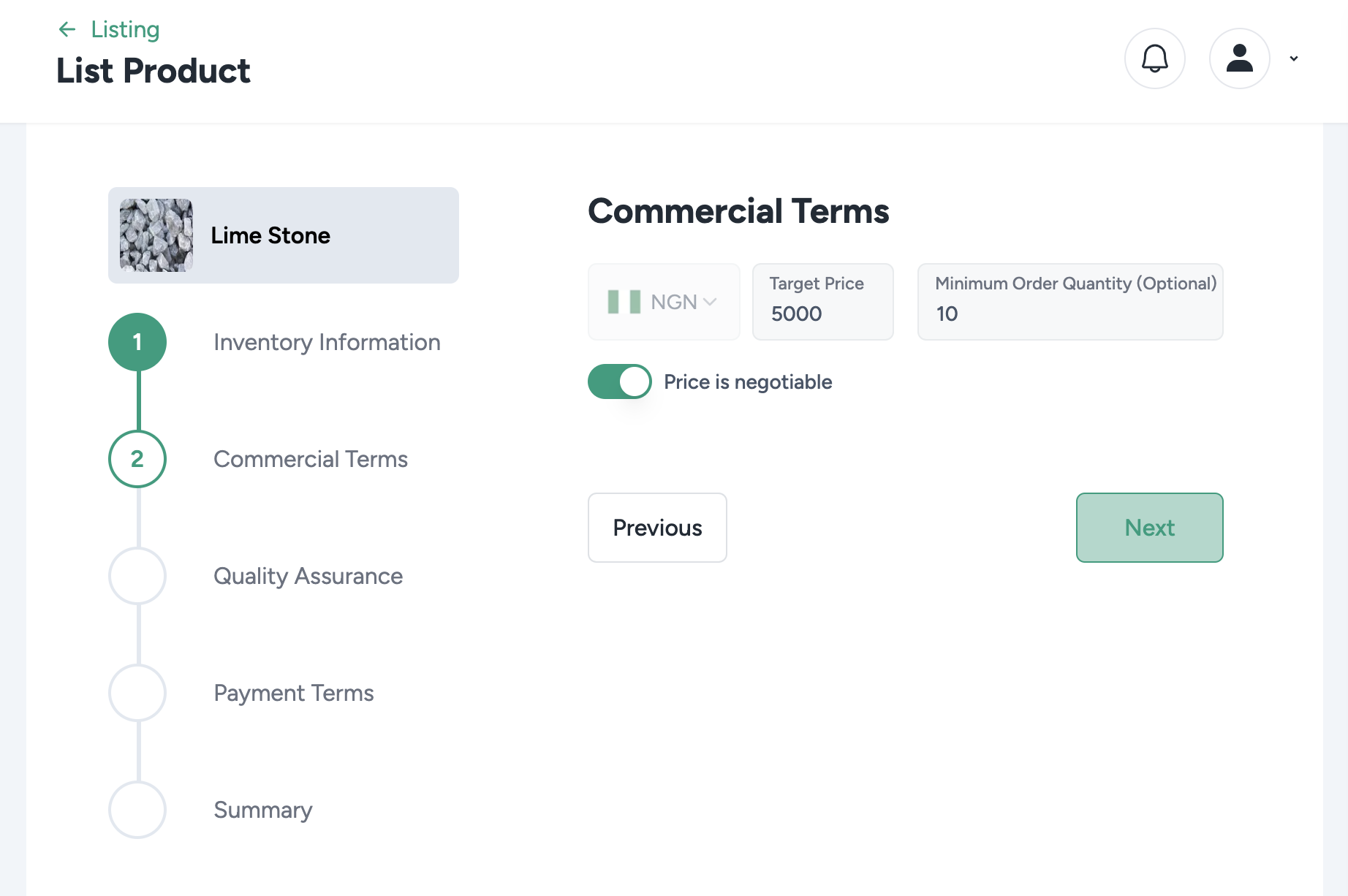
Commercial Terms
- Set the target selling price (e.g., ₦5,000 per metric tonne).
- Choose whether the price is negotiable.
- (Optional) Set a Minimum Order Quantity.
-
Quality Assurance
- Upload lab test results if you’ve already tested the product.
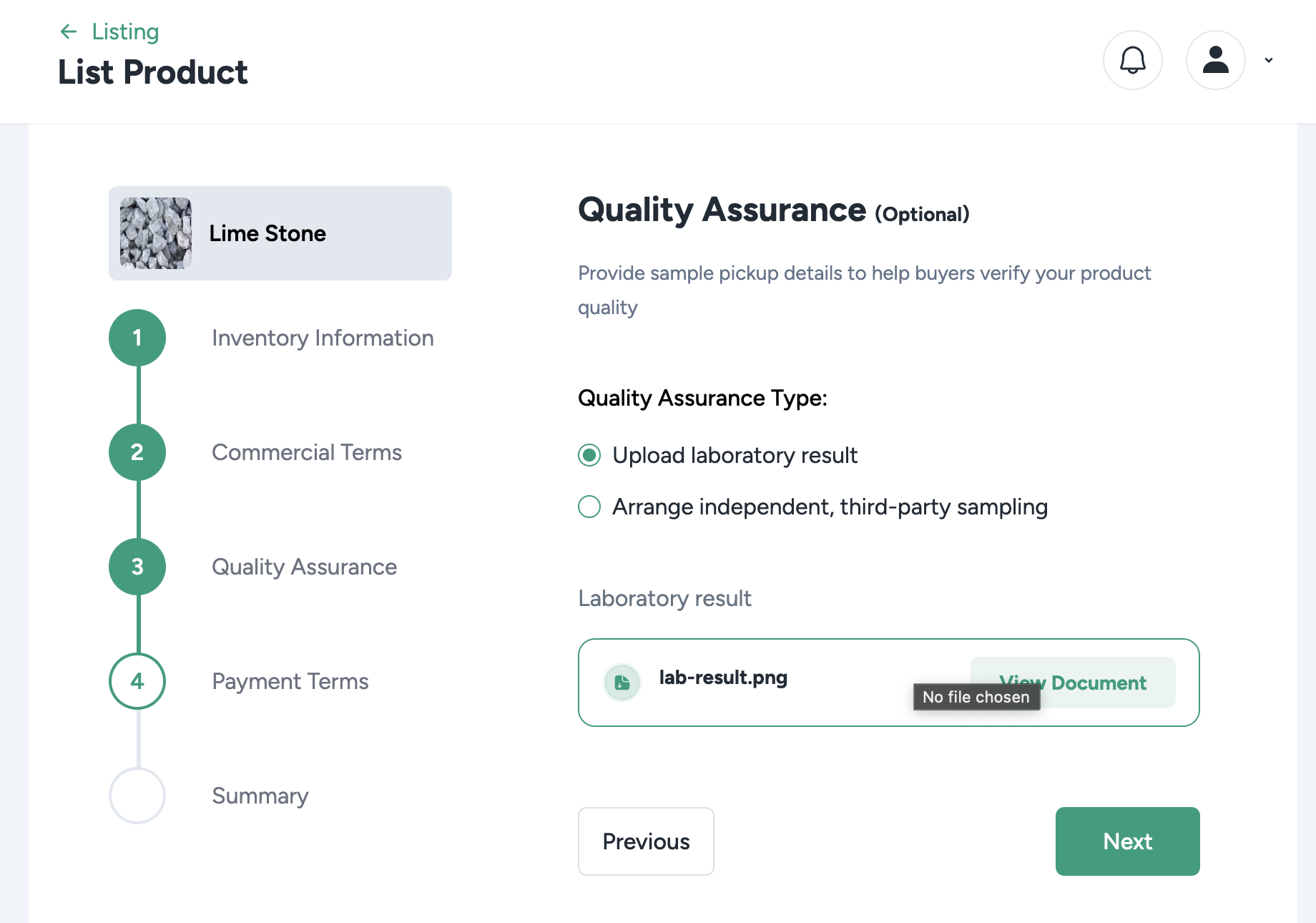
- If the product isn’t tested, arrange a third-party sample test.
- Select a date, time, and location for a sampler to collect a sample.
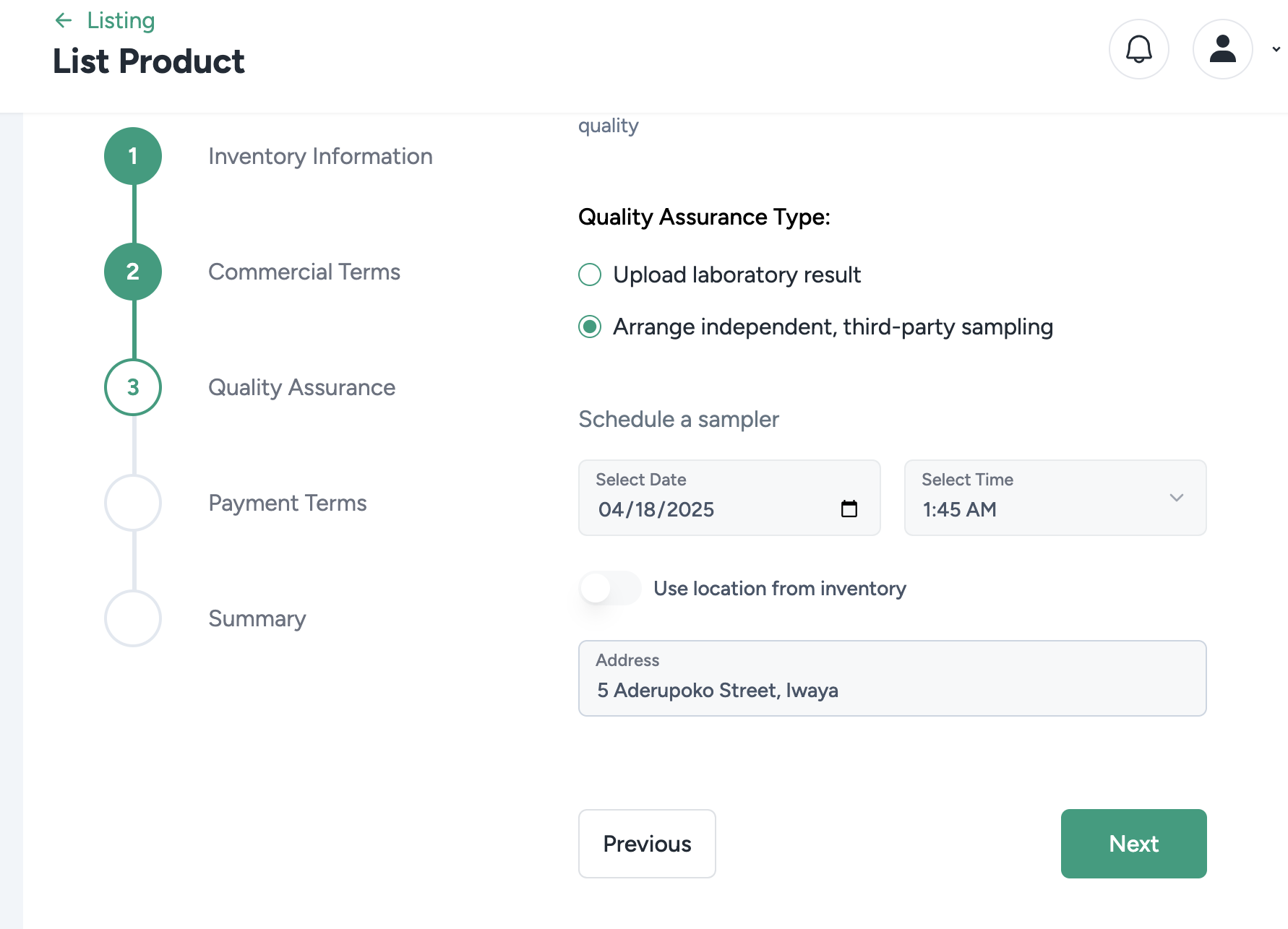
- Upload lab test results if you’ve already tested the product.
📌 Buyers often request test results before finalizing a trade, but you can proceed without them and verify later.
-
Payment Terms
- Choose how payments will be structured:
- Advance Payment – Set the percentage (%) the buyer must pay upfront.
- Cash Against Doc. (CAD) – Used for international trades (Buyer pays when goods arrive at the port).
- On Delivery – Specify how much of the payment will be made after delivery.
- Ensure the total adds up to 100%.
- You can choose to make the payment terms negotiable, allowing the buyer to propose adjustments before finalizing the trade.
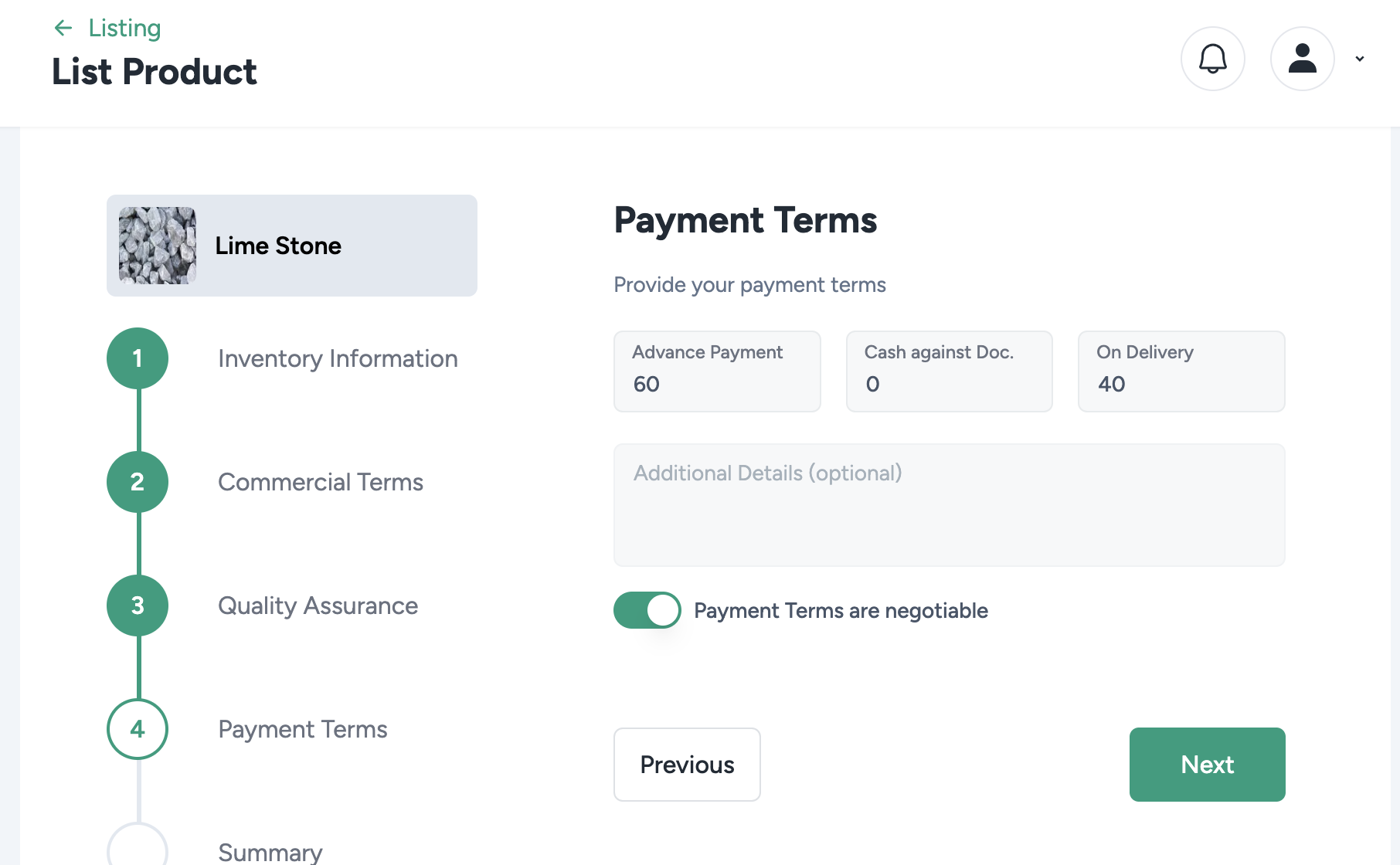
- Choose how payments will be structured:
📌 Example: If Advance Payment is 60%, then On Delivery must be 40%.
📌 If payment terms are set as negotiable, the buyer can suggest changes, and both parties can reach an agreement before proceeding.
- Summary Page
The Summary Page displays all the categories of terms you have set during the listing process. This page allows you to review and edit any details before finalizing your product listing.
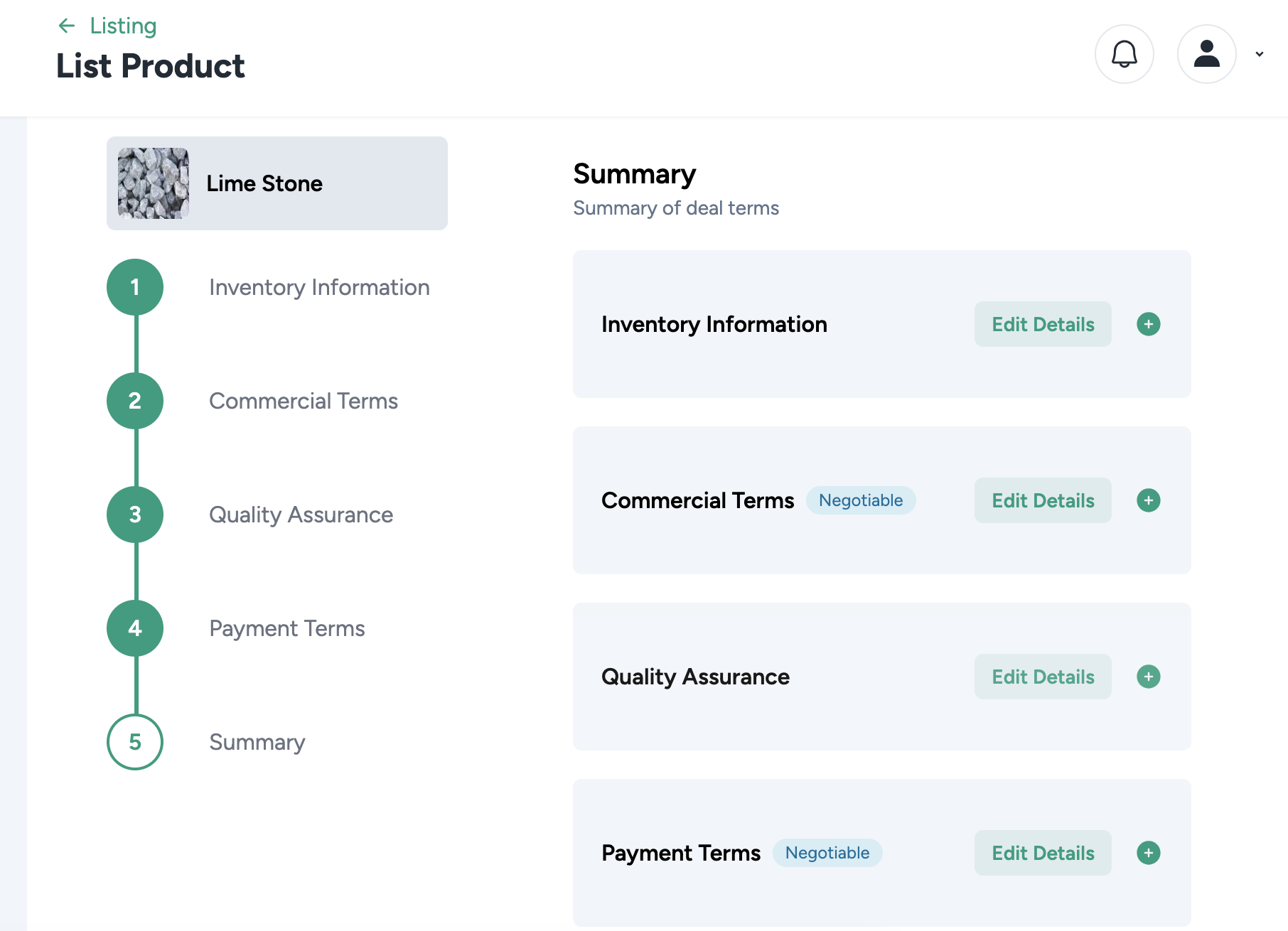
- Carefully review all trade details, including:
- Product information
- Pricing and commercial terms
- Quality assurance details
- Payment terms
- Logistics preferences
- If necessary, edit any section to make adjustments.
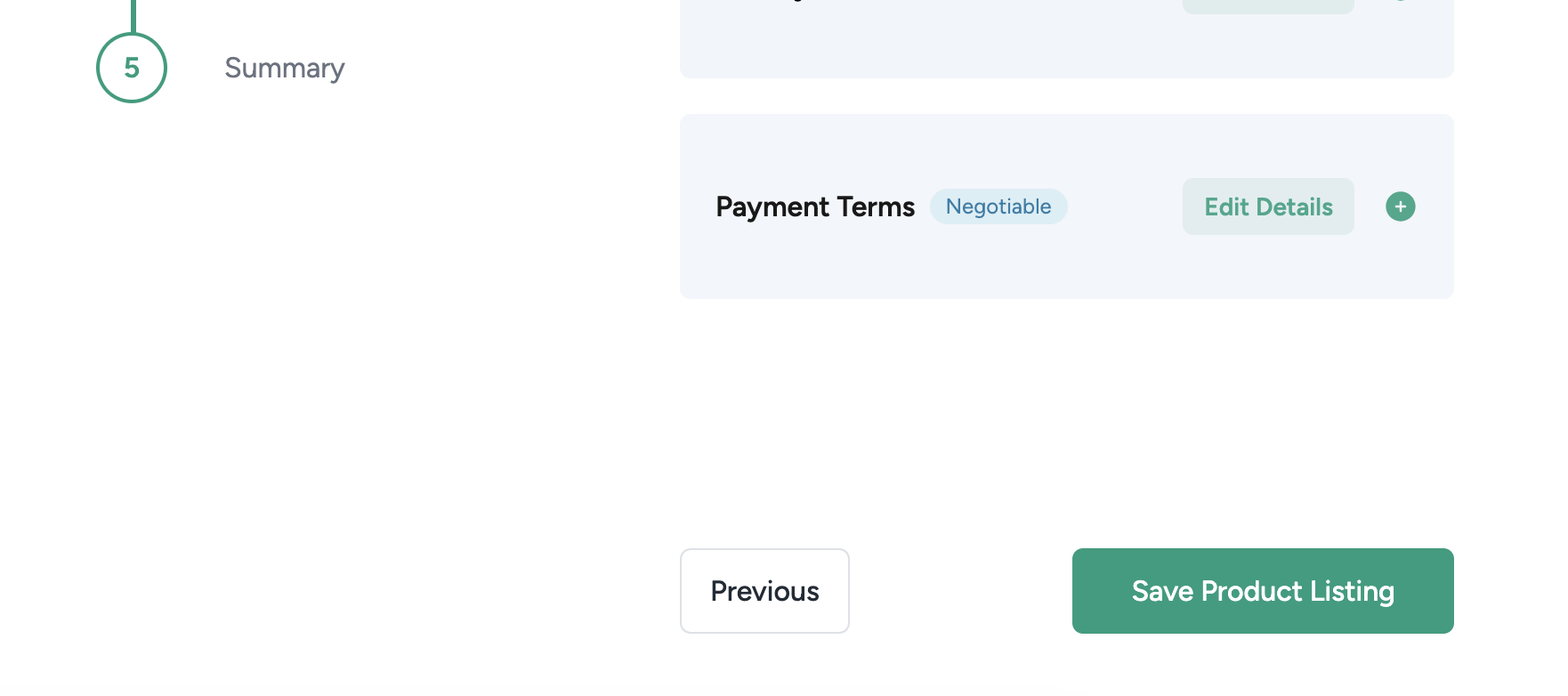
- Once everything looks good, click “Save Product Listing” to finalize.
📌 Once saved, your product listing is now live and available for buyers to review!
Setting a Trade Tracking Flow
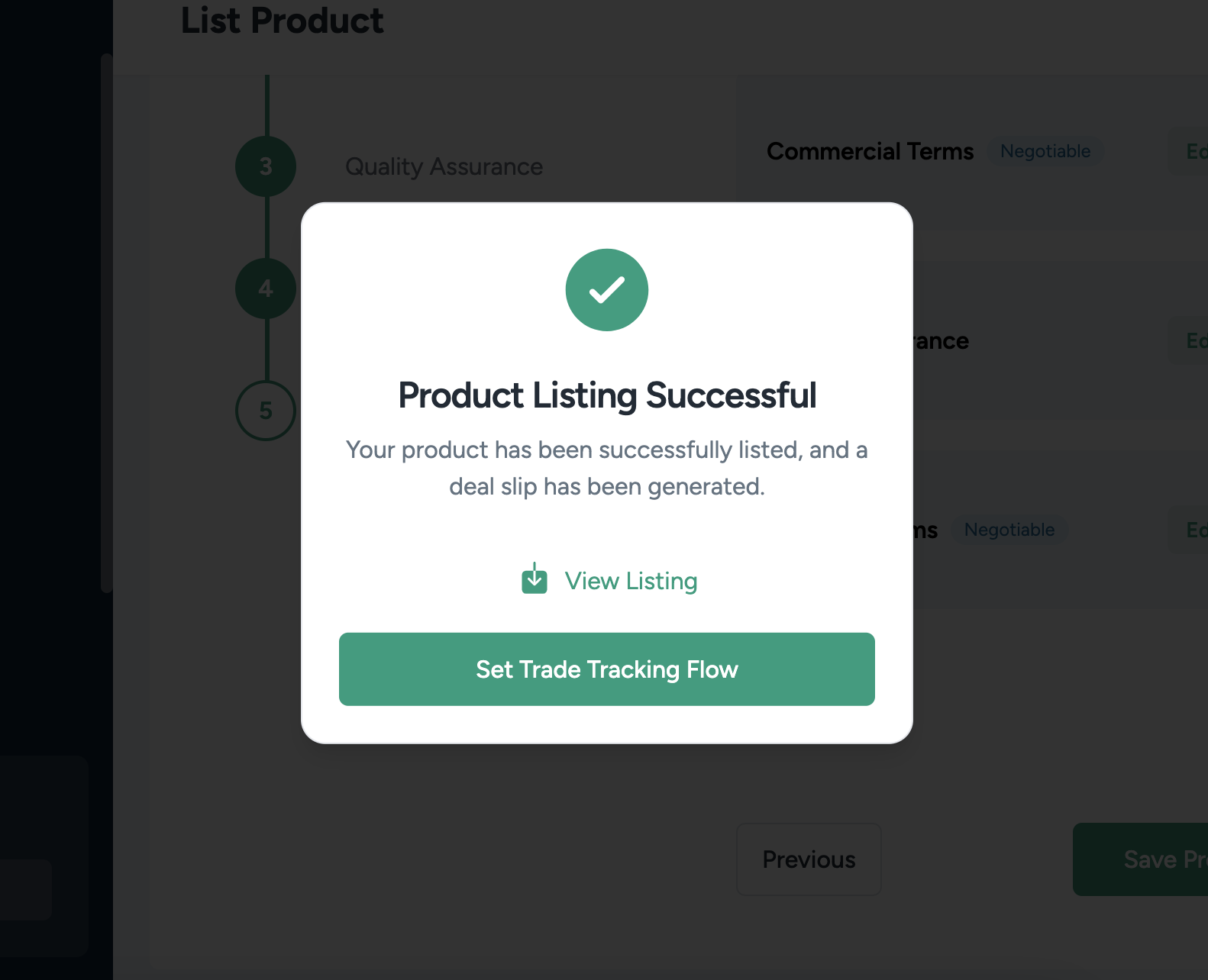
Once your product is listed and the buyer accepts the trade, you must set a Trade Tracking Flow.
What is a Trade Tracking Flow?
A Trade Tracking Flow defines the sequence of events that guide how a trade is executed from start to finish. It allows sellers to set up structured steps for their transactions, ensuring smooth coordination between buyer and seller.
Sellers can customize the trade flow by adding multiple steps based on their specific transaction needs. Once set, the buyer can review and negotiate changes before finalizing the trade.
📌 Example Trade Tracking Flow:
- Local Sampling – Verify the product’s quality before proceeding.
- Advance Payment – Receive the agreed upfront payment.
- Haulage/Shipment – Transport the product to the buyer’s location.
- Payment on Delivery – Complete the transaction once the buyer receives the goods.
How to Create a Trade Tracking Flow
- Navigate to Trade Tracking.
- Click "Create Trade Tracking Flow".
- The system will redirect you to the Trade Tracking Setup Page, where you will provide details for the flow.
- Click "Set Trade Tracking Flow" to begin.
Trade Tracking Flow Setup
After clicking "Set Trade Tracking Flow", the system prompts you to define the structure of the trade.
1. Select Trade Type
The first step is to choose the Trade Type:
- Local Trade – Trade conducted within the same country.
- International Trade – Trade involving cross-border transactions.
📌 Choosing the correct trade type determines the available trade flow options.
2. Add Trade Steps
Once you select the trade type, you can add multiple steps to customize how the trade should be executed.
Available steps include:
- Local Sampling – Conduct product verification before proceeding.
- Finance (Payment on Delivery) – Specify when the payment will be completed.
- Haulage – Arrange product transportation within a country.
- Freight Forwarding – Manage shipping logistics for international trade.
- Cash Against Documents (CAD) – Used in international trade, ensuring payment is made upon document verification.
- International Sampling – Conduct quality checks before exporting goods.
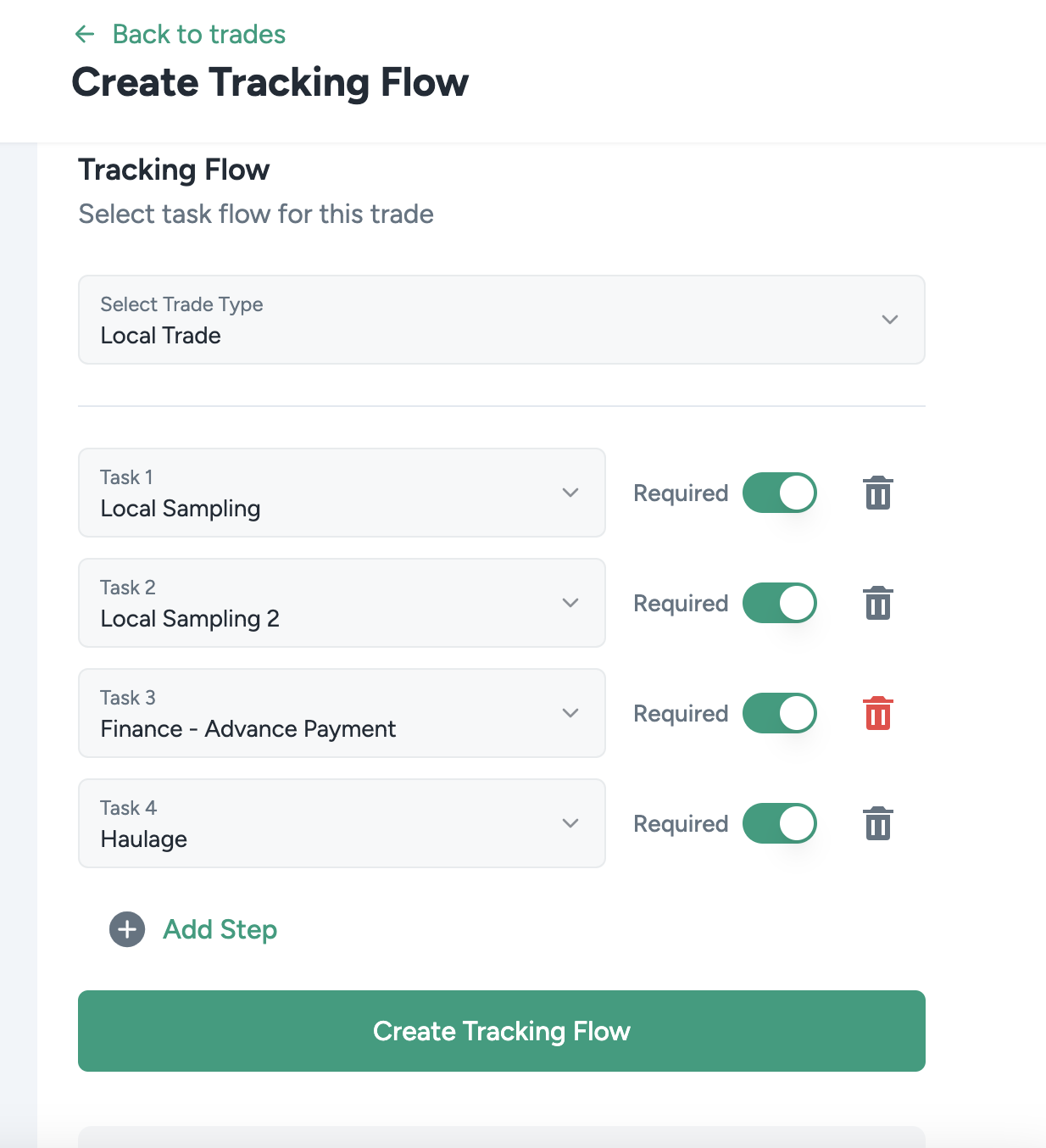 📌 The order of these steps is completely customizable based on how you want the trade to flow.
4. Confirm and Submit
- Click "Confirm Trade Tracking Flow" to save your setup.
- The buyer will review the trade tracking flow and may request modifications before approval.
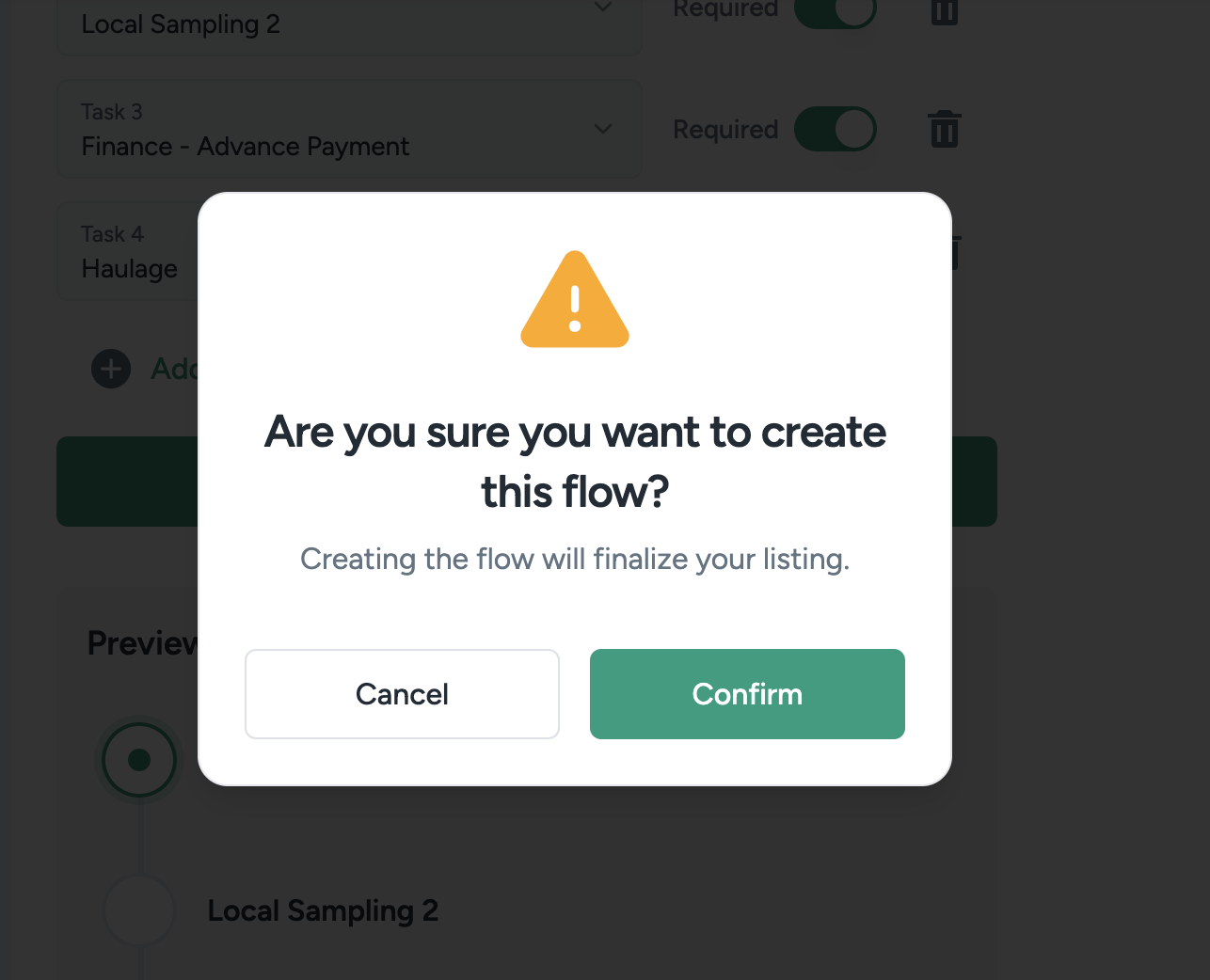
📌 The trade tracking flow is subject to buyer review and negotiation before it is finalized.
🎉 Once your Trade Tracking Flow is approved, you can proceed with the trade according to the agreed sequence of events!
Finalizing the Trade
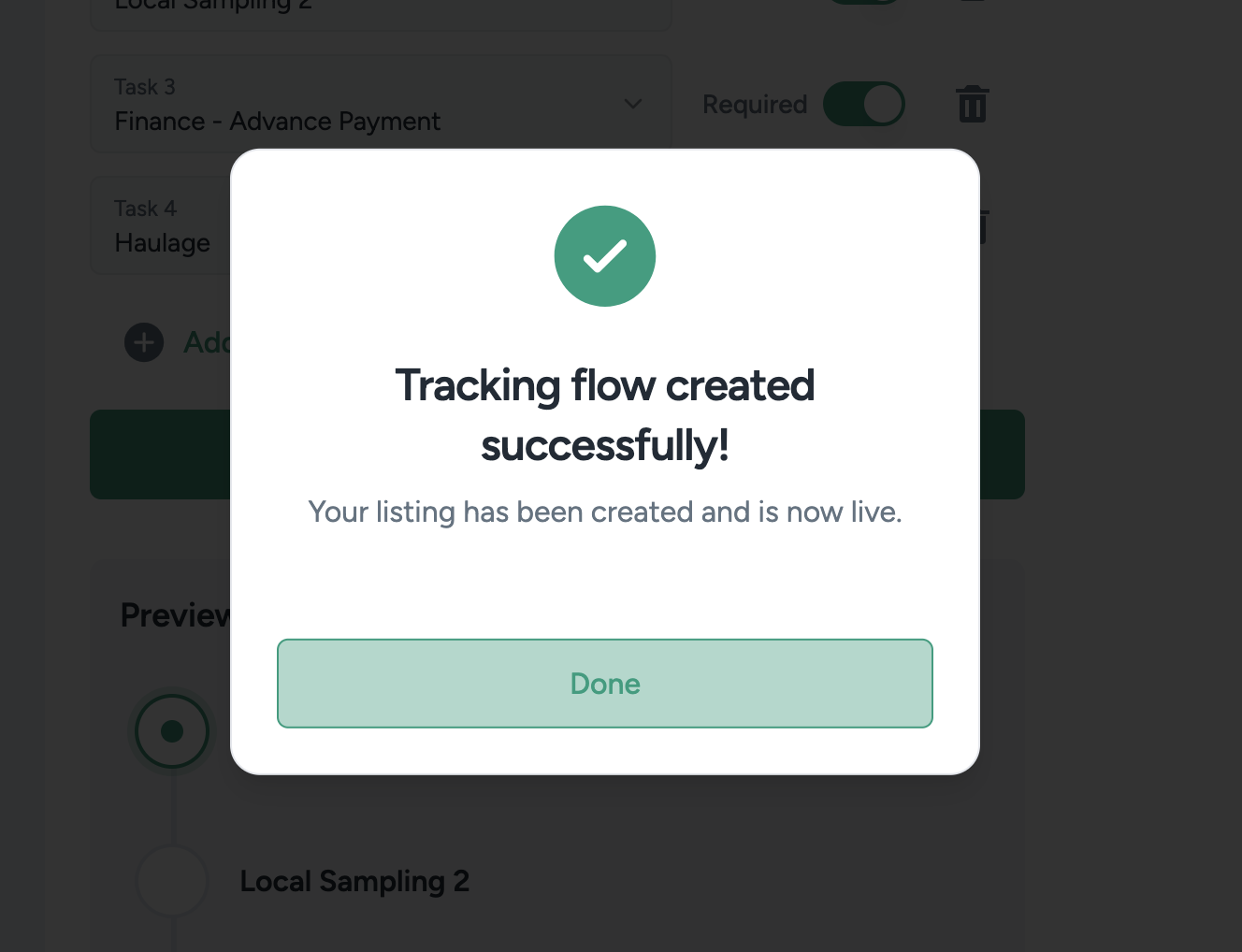
Once the Trade Tracking Flow is created and the listing is complete, the buyer must review and accept the trade terms before proceeding.
Buyer Acceptance or Rejection
- If the buyer rejects the listing, the system cancels the trade immediately.
- If the buyer accepts the listing, they can review the trade terms set by the seller.
- The buyer has the option to edit the terms and send a counteroffer back to the seller.
📌 Example: If the seller sets the advance payment at 60%, the buyer may adjust it to 50% advance payment and 50% payment on delivery before sending it back for review.
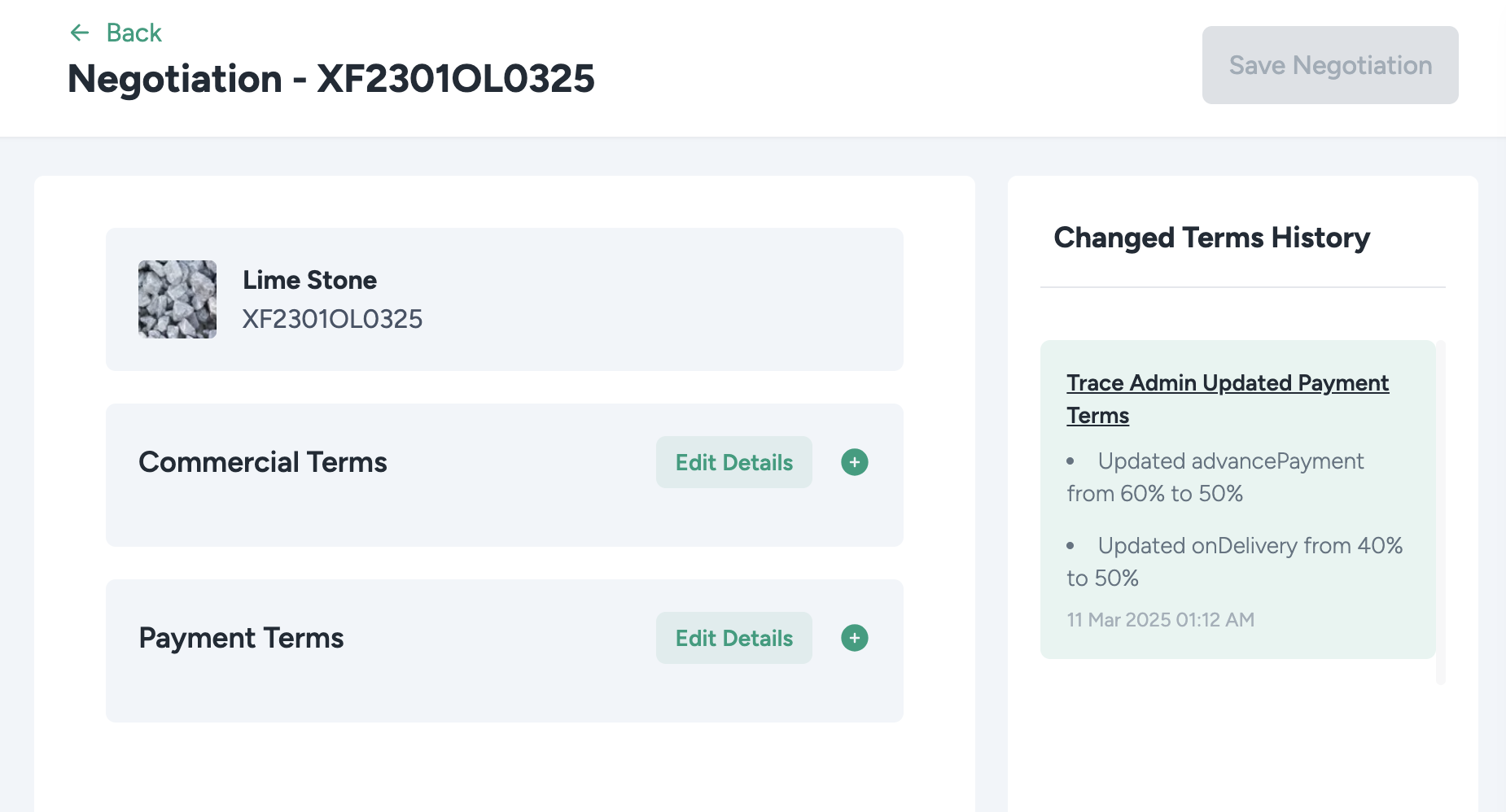
Negotiating the Trade Terms
- Once the buyer modifies the terms, the seller will receive a notification of the changes.
- The seller can choose to accept, reject, or propose new terms in response.
- This process continues until both parties agree on all trade conditions.
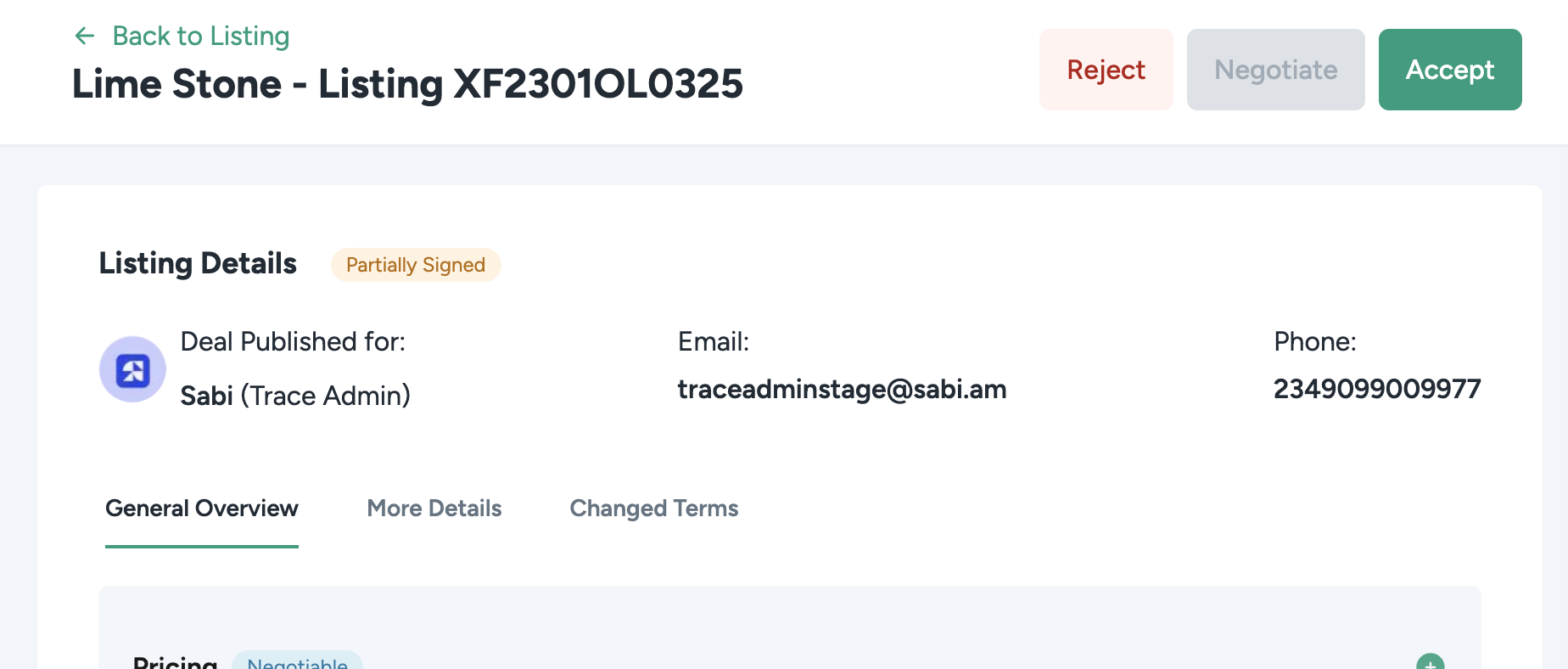
📌 The buyer may also request a different Trade Tracking Flow if they prefer a different sequence. For example, the buyer might want to pay first before local sampling, instead of following the seller's proposed flow.
Contract Signing
Once both the buyer and seller finalize the trade terms, the system generates a contract containing all agreed-upon conditions.
How Contract Signing Works:
-
Trace integrates with Zoho Sign, a third-party contract signing tool.
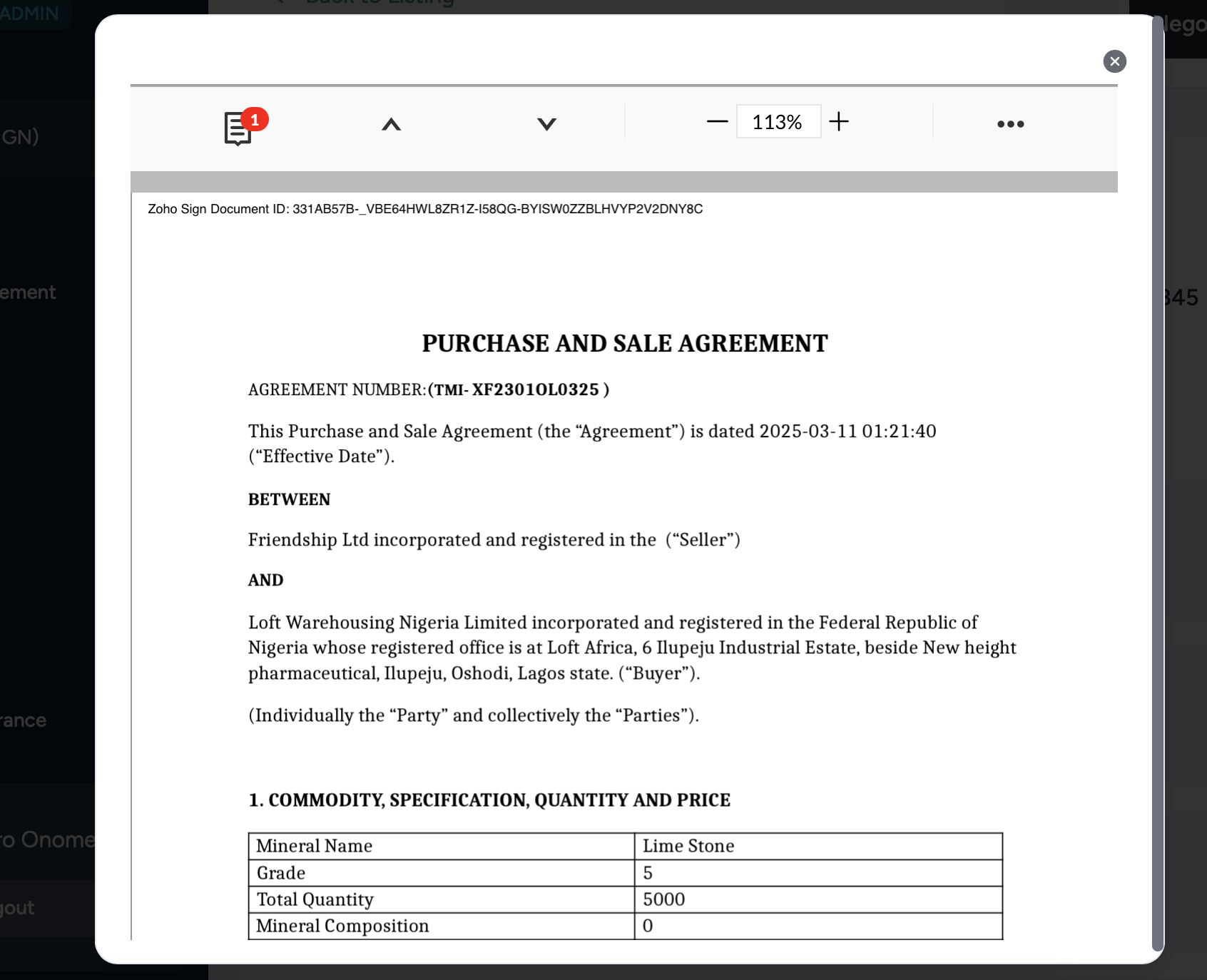
-
The buyer signs the contract first to confirm their agreement.
-
The system updates the status to "Partially Signed" after the buyer signs.
-
The seller must review and sign the contract to complete the agreement.
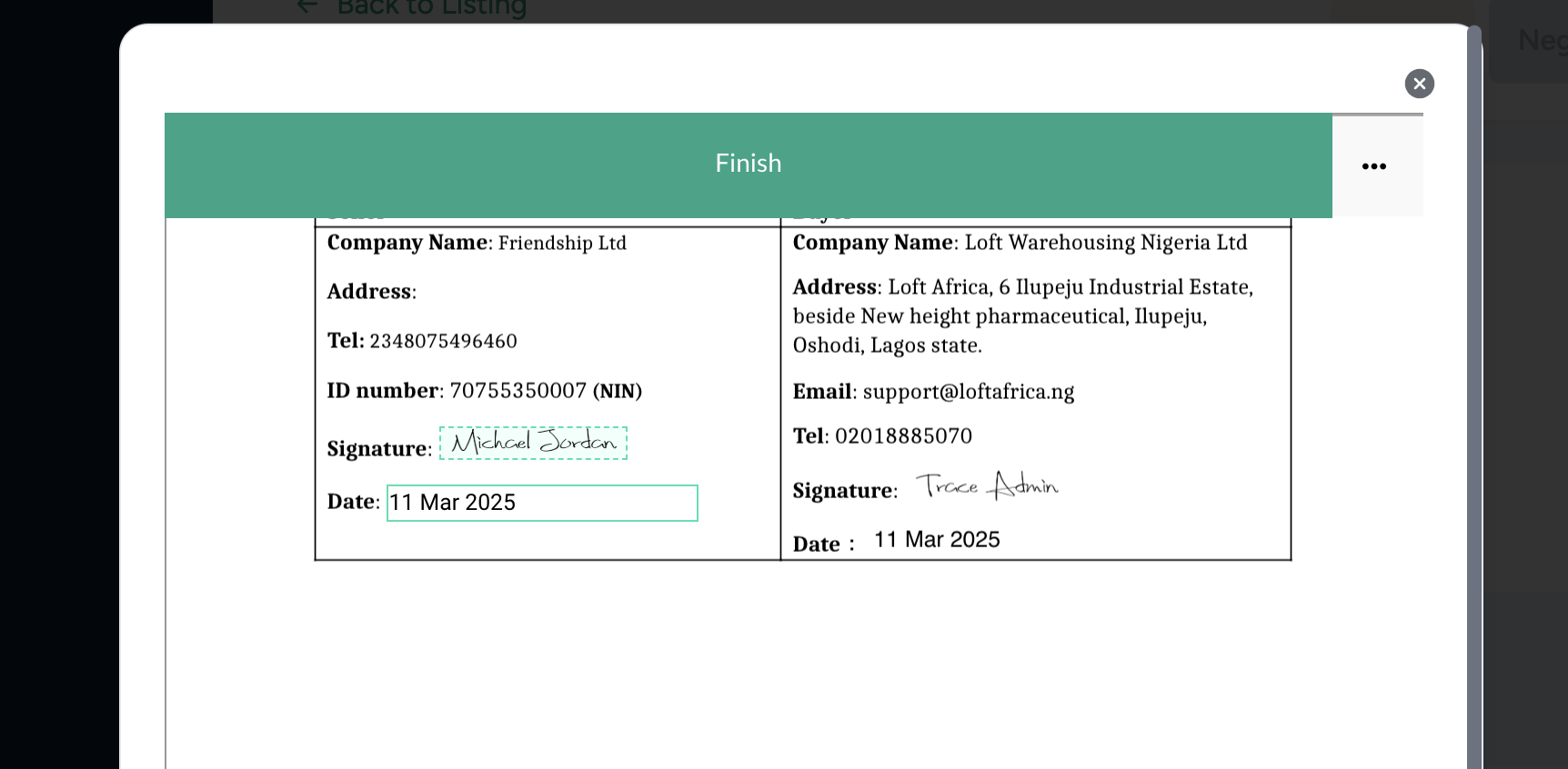
- Once both parties sign, the trade status updates to "Fully Signed".
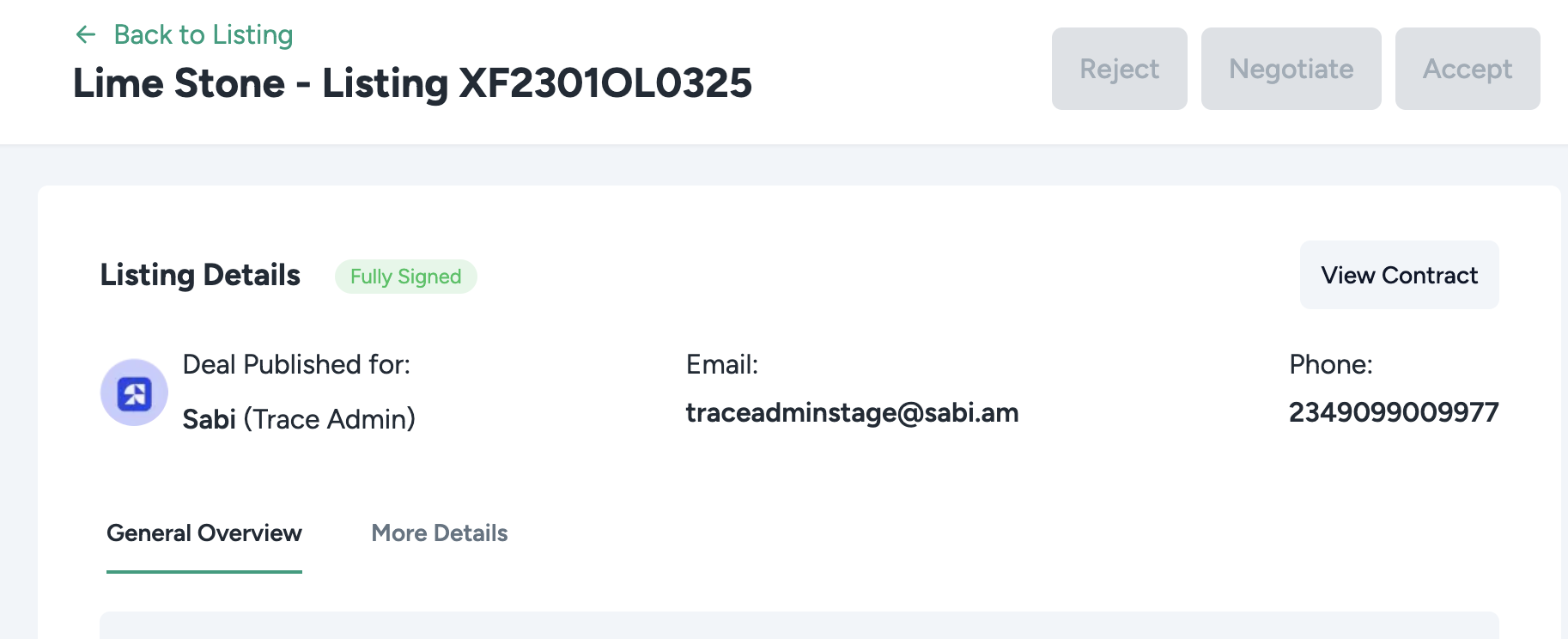
📌 The contract contains all the finalized trade details, including price, payment terms, and trade tracking flow.
Completing the Trade
- After signing, click "Finish" to confirm the contract.
- The trade becomes officially active once the buyer accepts all conditions.
- The transaction now follows the Trade Tracking Flow until completion.
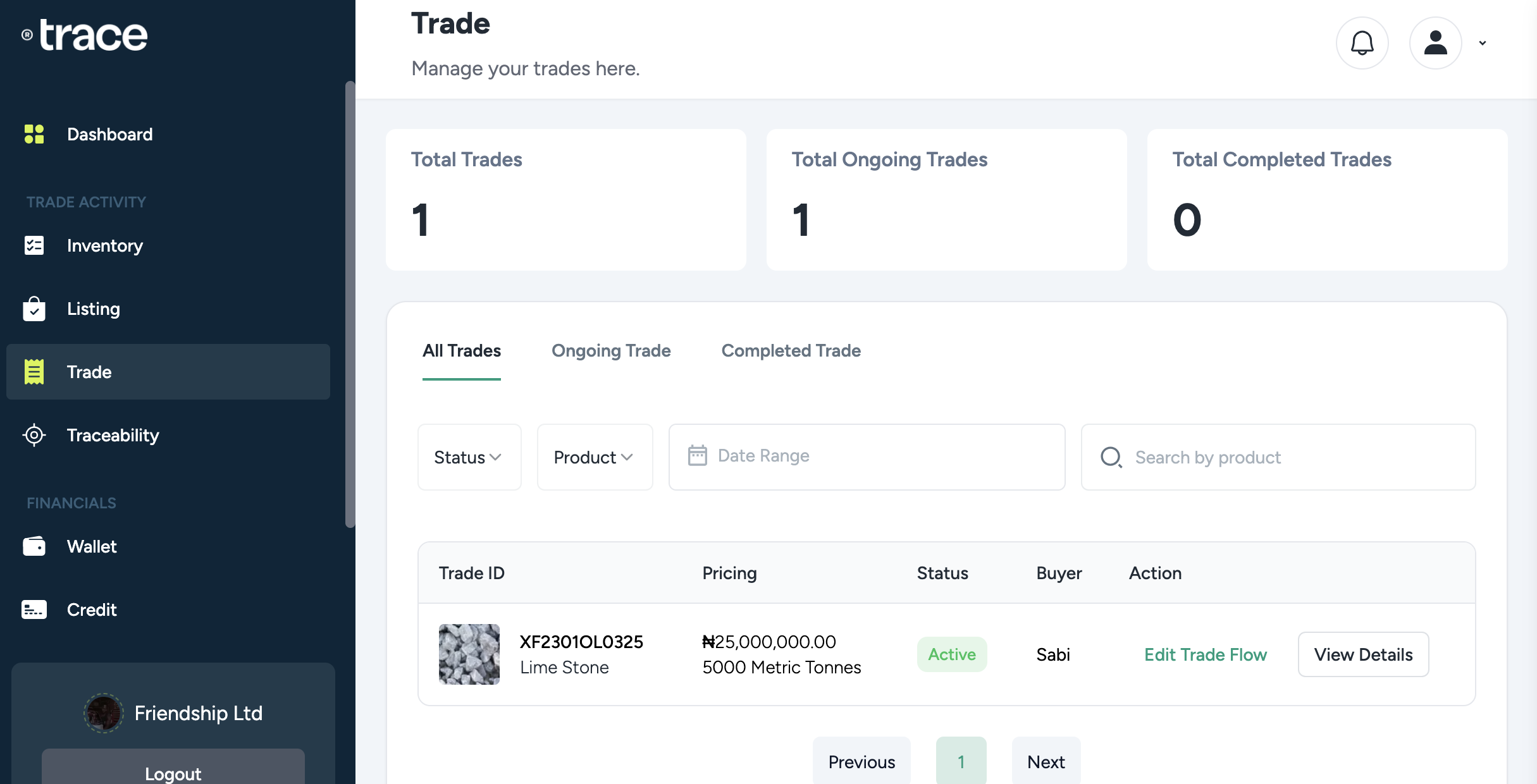
📌 At this stage, sellers can still complete quality assurance verification if needed.
🚀 Your trade is now live and ready to be executed on Trace!
Conclusion
🎉 You are now fully equipped to list products and manage trades on Trace!
This guide has covered everything you need to know, including:
✅ Adding products to your inventory
✅ Listing products and setting trade terms
✅ Creating a Trade Tracking Flow to structure your transactions
✅ Finalizing the trade through negotiation and contract signing
With this knowledge, you can confidently navigate the Trace platform, connect with buyers, and streamline your trading process.
📌 For further assistance, visit the Trace Help Center or reach out to Trace Support for guidance.
Now go ahead—list your products, set up trades, and grow your business on Trace!